A friend of mine solved this issue and he said I could share it. It’s a quick solution that was tricky to find any documentation on resolving the issue. He had a vCenter upgrade that would not go past 50% on stage 2 of the upgrade. That’s the stage where the new vCenter is brought online and the data from the old vCenter is migrated to the new vCenter. Turned out to be a duplicate IP address between the old and new vCenters because the old vCenter wasn’t going down quick enough. Therefore, he went through the upgrade process again and disconnected the vNIC on the old vCenter when at 50% on stage 2. Then the upgrade successfully finished.
Tag vCenter
vSphere Announcements at VMware Explore 2023 Las Vegas
VMware has a lot of vSphere related announcements for their next big update, which is vSphere 8 Update 2. It is scheduled to be released Q3 2023 so that’s just around the corner. Core product announcements are usually my favorite because they touch the daily work for all VMware admins.

I know we all want to keep our vCenters running the latest version, but it can be tough to coordinate downtime with 7+ patches every year. It can easily take one hour for each upgrade in a medium sized environment. Keep in mind that the following doesn’t apply to vCenters in ELM and HA at the moment. Now there’s reduced downtime for upgrades of vCenter. It will only be down for about 5 minutes! This is accomplished due to the following. A new vCenter server is deployed with a temporary IP address, even for a minor patch. Data is copied from the old to new vCenter. Then the short downtime occurs when switching over and starting up services. On top of that, there’s an automatic LVM snapshot taken during patching, which can be resumed on a failure or rolled back. Being able to resume is nice because sometimes a upgrade fails for a very minor reason and need to start over. Now can fix it and resume the upgrade.
Renewing or replacing certificates has never been fun, but there’s been improvements over the past few years. Now there’s a new enhancement that everyone will appreciate. vCenter certs can now be renewed or replaced without restarting services so no downtime.
This next enhancement is useful if stuck in a bad situation with your vDS not being synced up with all hosts. This can happen when a backup is taken, a vDS change occurs, and then a restore. You will no longer have vDS inconsistencies when restoring from a backup. vDS changes will be pushed from cluster(s) to vCenter. This is also supported with a vDS using NSX.
At a previous job, I have had Microsoft engineers not thrilled with no vCenter identity provider federation support with Entra ID. By the way, Microsoft recently changed Azure AD to now be called Entra ID. Now Entra ID is supported and all existing identity providers are still available. There’s another great addition on the Microsoft side. Adding an AD OU path is an option when going through the VM customization wizard. No more computer objects going to the computers container or automation needed outside of the wizard to do this.

I think we have all been in a situation where a backup or something has a lock on a VMDK. Then it’s a pain to track it down via CLI and logs. Now there is a detailed error message when a file is locked with the IP address and MAC of the host holding the file lock.

With AI and ML getting bigger and bigger, GPUs need to have better features at the hypervisor level. There have always been many caveats with a VM having a vGPU enabled. Now there has been further improvements with placement for vGPU enabled VMs. DRS now makes better deployment decisions with an initial placement of a VM. Also, vGPU enabled VMs are automatically migrated when needed to accommodate for larger VMs. There’s one other addition that I think is cool for vGPU enabled VMs. No more guessing how much time a user will be affected with a vMotion. You can now view a stun time estimate in edit settings of a VM.
Whenever there’s a big update, you can expect a new VM hardware version to be released. Now up to version 21.

Those are the features and improvements that I am looking forward to most in vSphere 8 Update 2, but wait, there’s more. There are many other advancements, such on the DevOps side. Give it a try on a VMware Hands-on Lab and check out VMware’s documentation for further details.
Where are those vCLS machines hiding?
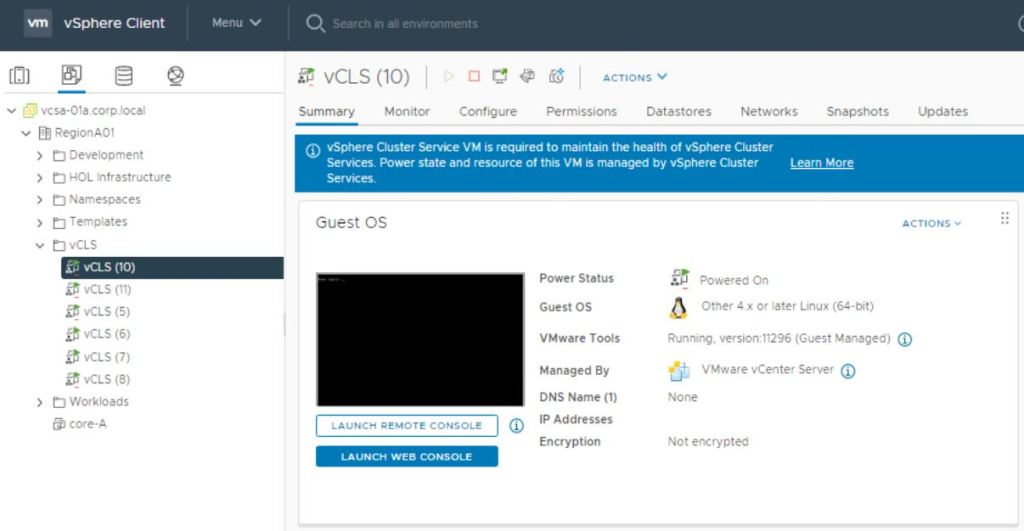
Everyone has noticed the tiny (1CPU, 128MB memory) vCLS machines (vSphere Cluster Services) that deployed in our environments after the 7.0 U1 upgrade. I like the concept of them that remove the dependency of vCenter being up for DRS to function. I envision that VMware will add more features that no longer depend on vCenter in future releases. There’s a little quirky thing that only an admin account in vCenter can see the vCLS machines. Searching with a non-admin account will only find the vCLS tags. Not really many scerionos that someone needs to interact with them, but one is to migrate them off a datastore you don’t want them to use.
vRealize Log Insight Not Connected to vCenter Servers After Upgrade
This is just a quick article that I have been meaning to do. I upgraded my Log Insight server. After the upgrade, it wasn’t collecting logs from my vCenter Servers. I had to accept a certificate for each vCenter Server and then it worked again. The setting is in Log Insight, under administration, and vSphere. I forgot to take a screenshot when I saw the error. Below is the location to accept the certificate.

Migrate a vCenter Server and Change its IP Address
I needed to migrate a vCenter Server between datacenters. A new IP address was required for the vCenter Server at the destination. The process of changing a vCenter Server’s IP address became a straightforward process in vSphere 6.5. However, to add a complication in my situation, I also needed to migrate the vCenter Server. Unfortunately, the destination network was not available at the source. Here are the steps I went through and then an issue I ran into. This was for a 6.7 vCenter Server appliance with an embedded PSC.
- Backup the vCenter Server
- Shutdown vCenter Server
- Clone vCenter Server
- This was only a failsafe if the vCenter Server does not work at the destination to avoid restoring from a backup
- Power on the vCenter Server
- Run and save an export of RVTools
- I always like to do this before big vCenter Server work so that I know where all my VMs are at
- If only using a vDS, verify you have a port group with ephemeral binding
- I did not need it, but you might depending on your destination
- Change the IP address of the vCenter Server
- The new IP address was displayed in the vCenter Server console
- Shutdown the vCenter Server
- Migrate the vCenter Server with VMware vCenter Converter Standalone to the destination ESXi host.
- Ensure to verify and/or make the following changes in Converter
- Required VM Hardware Version
- VMXNET3
- Ensure to verify and/or make the following changes in Converter
- Change the DNS records for the vCenter Server
- Power on the vCenter Server
- Verify if the vCenter Server vNIC is connected
- Toggle the port groups if needed to restore connectivity
- https://kb.vmware.com/s/article/2093588
- Reboot the vCenter Server
- Verification
- Delete the original and cloned vCenter Servers at the source
I thought everything went well. All ESXi hosts and VMs appeared to be happy. However, a user reported his remote console for some VMs would freeze after about 30-45 seconds and I also noticed some vDSs had sync issues. I did some research and found out about 90% of my hosts had the old vCenter Server IP address in vpxa.cfg.
VMware has KB1001493 which covers this issue. There are two methods to resolve the issue in the KB article. Every host with the issue needed to be touched so a lot of tedious work required for both methods. At first, I went with method 1 and tried it out on one host. The host was not responding after restarting the management agents and required to restart the vCenter Server service. I did not want to have all of my hosts not responding for a long period of time nor did I want to restart the vCenter Server service after restarting managements agents on each host. Therefore, I went with method 2.
Method 2 had more steps, but seemed to be cleaner. Essentially, each host is removed and added back to the vCenter Server one at a time so that seemed like a better approach. Hosts with a vDS required a little more work and documentation since a host will not have access to the vDS when removed. That meant to first put each host into maintenance mode before starting the first step. Then go through the steps and repeat on the next host. This greatly reduced the risk of VMs hitting any road bumps since VMs were not on a host that was being worked on. Then, of course, add each host back to the vDS. If no vDS and only standard switches, than no need to follow my extra step since network connectivity will be fine when the host is removed from the vCenter Server. Keep in mind performance data, permissions (depending what level they are set), VM placement in a folder, tags, and events/tasks (host level) are lost when removing a host from a vCenter Server. By the way, I did not do step 4 (Reinstall the VMware vCenter Server agent). The referenced KB article only mentioned up to 6.0, but seemed to worked well.
Perhaps, there’s a cleaner way to do this process. However, all things considered, the IP address change and migration went well. No outages and the desired outcome was achieved. I did two tasks at once so I, at first, thought that’s why I ran into the host issue. Though, I expect many people may have had this same issue, without combining the two tasks I did, since there is a KB article on how to resolve the issue.
VMworld 2019 – The Business Side

I went to VMworld for my first time and had a blast. The event was great, but not without its flaws. I tweeted during the event and I may start tweeting more often. Also, when I post a new article. However, I never got around to posting an article during the event.
Monday’s general session presentation fell flat for me. Project Pacific and Tanzu Mission Control were already announced earlier that day. Then the keynote felt too scripted. After looking past the superficial side, the content was huge. Project Pacific will have Kubernetes embedded in the hypervisor. This is a great move by VMware to work more closely where the industry has been heading. Their latest acquisitions definitely tell what they are up to; Pivotal and Carbon Black. Then Tanzu Mission Control will give central management for Kubernetes clusters on-prem and in the cloud.
Tuesday’s general session highlighted some of the prior day’s announcements and went into additional news. VMware Cloud on Dell EMC is now available. It was previously announced at Dell’s conference, but this is the first time I heard about it. Dell will send an engineer to deploy a rack of hardware at a customer’s location and it shows up in a customer’s SDDC. Then Dell manages the hardware and ESXi stack. I really like this model. The best both worlds in my mind; a cloud-like architecture on-prem. NSX Intelligence was announced. VMware’s new CTO, Greg Lavender, was even announced on stage.
There was no shortage of sessions. I liked that VMware had each session labeled according to the technical level. My company has a TAM so I was able to attend additional sessions, which were under an NDA. I attended mostly them since they are not recorded. I am looking forward to watching many of the recorded sessions later on. Below are my favorite non-TAM sessions that I attended.
William Lam and Emad Younis hosted a great session on ‘The Next Generation of Lifecycle Management for vCenter Server’. Here are a couple nice additions to vSphere 6.7, which are currently available. Display the topology view of all vCenters and PSCs in an SSO domain (U2). This is under administration and system configuration. Now able to change the hostname and IP address of a vCenter Center (U3). Then they went into potential future additions in tech preview. A better summary page for vCenter, which includes; notification for vCenter updates, last updated, last backed up by the native file-based backup, summary totals at this level, and overall health status from the 5480 page. The screenshot below is from their presentation. They said there will be a permission to set to enable the update available notification so it can be easily hidden from a client or whoever. My favorite tech preview was the vCenter interoperability built into vCenter. No more going to the HCL for some components. Some potential new features are desired state for vCenter, improved host profiles, and easier NSX install. I am looking forward to all of this. Hopefully in the not too distant future.

I attended the Intro to Raspberry Pi and Run K8s on VMware. I figured both would be good since they were hands-on. I already have a Raspberry Pi running RetroPi. I figured this would help me get more motivated to do something else with my new Raspberry Pi I received in my vExpert bag. I definitely want to think of a home project for it. The Kubernetes session had a lab and was actually the first time I got to use Kubernetes. It served as a good intro. The lab was on VMC on AWS so it was legit.
I decided I will work a few more articles on VMworld. One of the solution exchange. Then the fun side of VMworld. The final will be on personal travel after VMworld. I stayed a few extra days to check out the city. I thought this may help others interested in doing the same since VMworld 2020 is back August 31st to September 3rd at the Moscone Center in San Francisco.
VMworld 2019 – The Business Side
VMworld 2019 – Solutions Exchange
VMworld 2019 – The Fun and Random Side
Integration between vRealize products and vCenter Server
There is very useful integration between vRealize Operations, Log Insight, and vCenter Server. The products can be tied to each other to make them more seamless and easier to navigate. A few roles are required to be created to restrict permissions. I have the broad steps and links to the VMware articles below that detail the specific permissions and documentation. Go through the steps and then you will be able to launch in context.
As defined by VMware; launch in context is a feature in vROps that lets you launch an external application via URL in a specific context. The context is defined by the active UI element and object selection. Launch in context lets the Log Insight adapter add menu items to a number of different views within the Custom user interface and the vSphere user interface of Operations Manager.
- Create an AD user account for Log Insight and vROps to be used to integrate with the applications
- Create roles in the vCenter Server with the appropriate permissions for Log Insight and vROps
- Assign the service accounts their respective roles at the global permission level
- Create a role in vROPs with the appropriate permissions
- Connect vROps to a vCenter Server
- Connect Log Insight to a vCenter Server
- All ESXi hosts in the vCenter Server can be selected to be added to Log Insight
- Connect vROps to Log Insight
- Connect Log Insight to vROps
- Ran into two bugs – https://kb.vmware.com/s/article/2096520
- When using AD account
- Test failed: Invalid username or password – even though user name and password were definitely correct
- Bug was supposed to be fixed in Log Insight v4.8. I reported it to VMware GSS.
- Second problem was it did not work with vROps’s hostname
- I created a local vROps account and used the IP address to make it work
- Ran into two bugs – https://kb.vmware.com/s/article/2096520

Migrate resources to a new vCenter Server – Unregister old vCenter Servers (Part 4)
Now that all resources have been migrated, verify that nothing was forgotten at the source vCenter Server. Refer back to part 1. Make sure all permissions have been set on the destination resources in case you need to go back to the source to double check. Would not be fun to roll back once the single command to unregister a vCenter Server is ran.
KB2106736 has the steps for the appliance and Windows versions to unregister a vCenter Server from a PSC. In the addition to the KB article, I have two suggestions. Take a snapshot of all PSCs before running the command just to be safe. I did run into a small issue at first, but nothing negative happened because of it. The vCenter name in the cmsso-util unregister command is case sensitive. “Could not find a host id which maps to NAME INPUTTED in Component Manager, Failed!!!” was the error message I received. If the vCenter Server is not found when running the command, I suggest you instead use the IP address of the vCenter Server.

The unregister command went well for me after I entered the vCenter Server in the correct case. It took a few minutes to run before I received the success output.

That completed the major steps in my migrations. I spent time afterwards to put datastores back in datastores clusters, import host profiles, etc. Documentation is important to assist in making your clusters look how they did before.
Migrate Resources to a New vCenter Server (Part 1)
Migrate resources to a new vCenter Server – Methods for Migrations (Part 2)
Migrate resources to a new vCenter Server – Cross vCenter vMotion Utility (Part 3)
Migrate resources to a new vCenter Server – Unregister old vCenter Servers (Part 4)
 VirtCorner